Webstudio in 2026: a new core for agents, the Content Engine, and team workspaces
In 2026, we rebuilt Webstudio around agents and added a Content Engine so medium-sized sites can manage their content without a separate CMS.

We think agents will become a central way to build websites. We spent much of 2026 rebuilding Webstudio’s core so an agent can edit anything you can edit in the Builder. Outside Webstudio, it can use any tools you give it: generate images, inspect analytics, or open the site in a browser to see what it actually built. The Webstudio MCP article goes deeper into that work.
With local MCP, an agent can change the project, check the result using vision, connect a CMS or API, fix bugs, run audits, and work with local files. When you load the project in the Builder, those changes appear on the Canvas and you can continue there.
We also moved our blog off Ghost this year. Webstudio has always let you bring your own CMS, but hosting a separate service for a blog with a few hundred posts is unnecessary overhead. The same goes for a portfolio, a collection of customer stories, or a directory of profiles. The Content Engine lets you keep that content in Webstudio.
What it takes for an agent to build a pricing section
“Add a pricing section. Make it responsive and use the pricing data from Stripe.”
If you gave that job to a designer, you’d expect them to look at the rest of the site first. The agent can do that too. It can find a card you already use, reuse its typography and button styles, and connect the new cards to the pricing data. Whether you keep your prices in Stripe or a CMS, you can change a price there without having to remember to change it on the card.
The core rewrite means the agent works with the same components, styles, breakpoints, and data connections that you use in the Builder. The Webstudio CLI loads the project from Webstudio and saves the agent’s edits back to it. The preview and browser run on the agent’s machine, so it can look at the cards side by side on desktop and stacked on a phone. If a long name pushes a button outside its card, the agent can see that, fix the layout, and look again.
Later, if you’d rather put the button somewhere else, open the project in the Builder and move it. Everything the agent edited still works with the same Builder controls you’d use if you’d built the section yourself.
Our blog is a folder of Markdown files
Each post on our blog is a Markdown file. The blog index leaves out drafts, sorts published posts by date, and splits the list into pages. Open a post and Webstudio uses its URL to find the right file. You get the same setup you’d expect from a CMS: one page lists the entries, and each entry has its own URL and uses a design you make once. There’s no separate CMS or database to set up, host, or maintain.
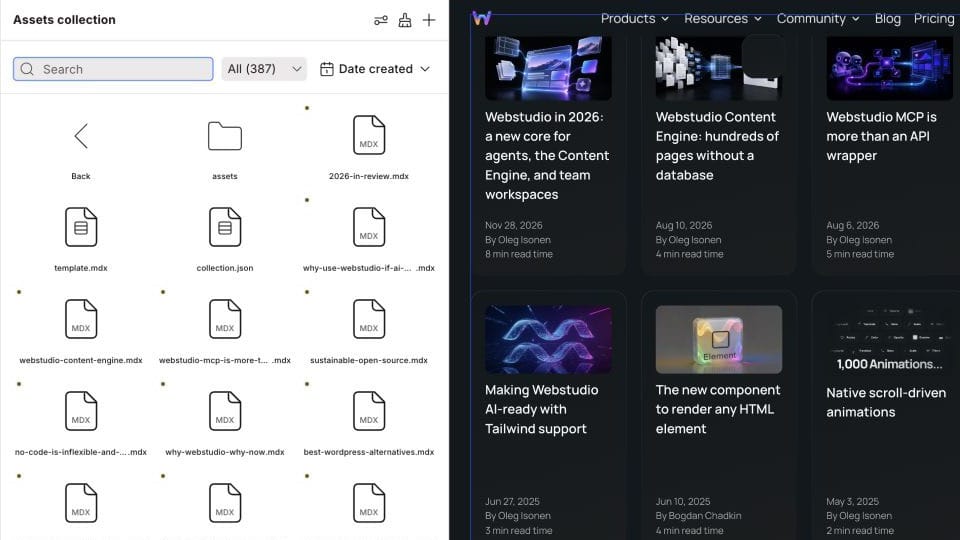
You can write in plain Markdown, or use MDX when you want to put components inside the article. You don’t have to know either format to edit an MDX post. Open it in Content mode and write on the Canvas. It feels like writing in Notion, except the content already looks the way it was designed to look on the site.
Those visual edits go back into the same file. You can open it in a text editor, give it to an agent, or take it somewhere else. For a blog with thousands of posts, or an editorial team that needs a specific review and approval workflow, a conventional CMS may still be the better choice. For our blog, the Content Engine does the job.
Use assets as data on a page
We added a new resource called Assets. Point it at a folder in your project and you can ask for a list of matching files or just one. You can filter the files, choose how to sort them, and use their metadata on a page. This works with images and documents too, even if you never write a line of Markdown.
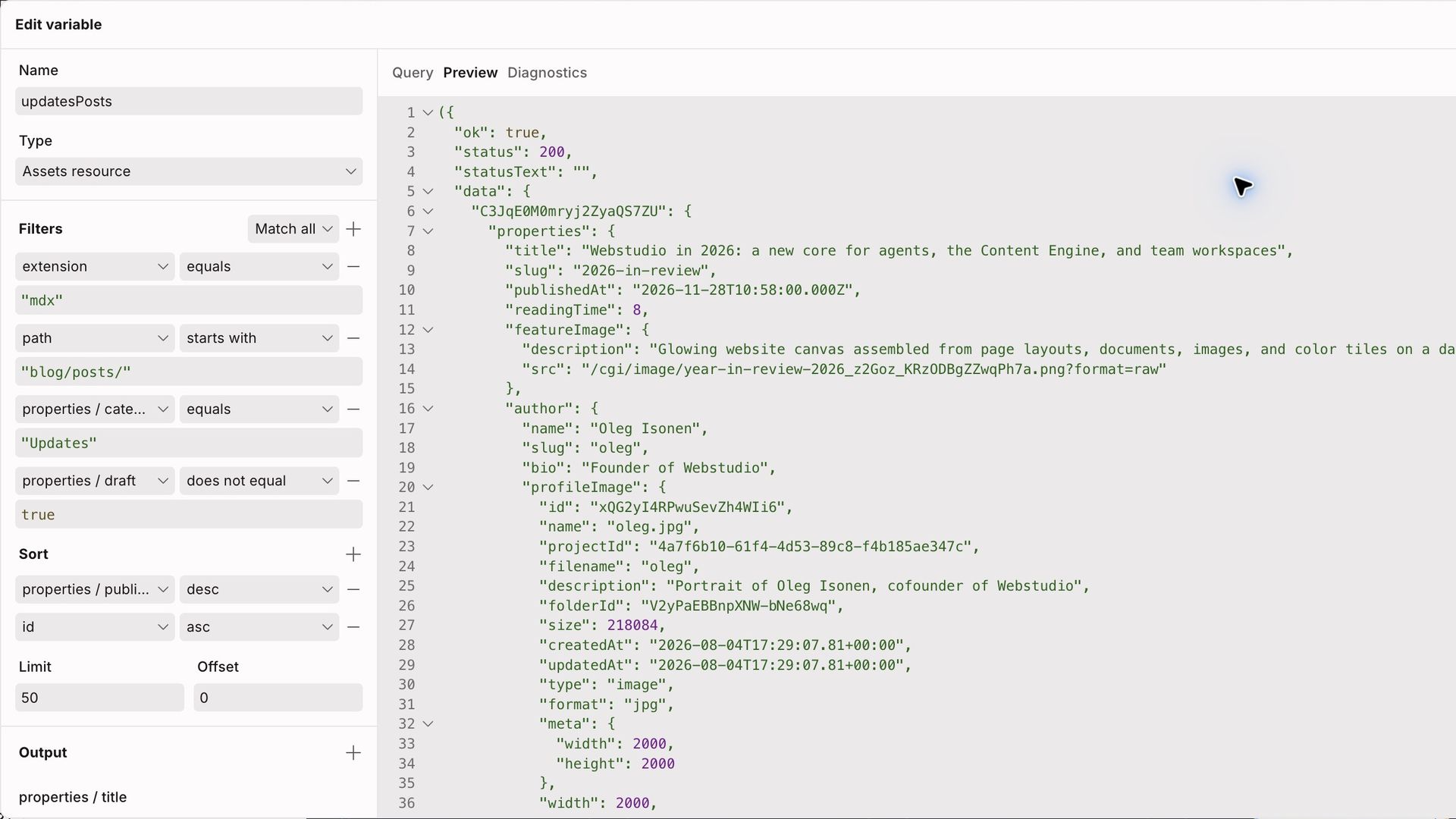
Say you’re building a photo gallery. Design how one photo should appear, then have the gallery list the images in a folder, newest first. Set the gallery to use each image’s description as its alt text. To add a photo, upload it to the folder, write the description yourself or ask an agent to do it, and publish. There’s no need to open the gallery page.
A folder can be a little CMS for downloads in much the same way. A downloads page might list every PDF, while a button on the homepage links only to the newest one. Folders are also the basis for content collections: define the fields for a customer story, for example, and editors get those fields when they add a story to the folder.
Give people a role across projects
A share link is handy when you want to show someone one project. But if the link gives permission to edit content, anyone who gets hold of it can change the site’s content. With workspaces, you can invite a teammate by email and give their Webstudio account a role across a group of projects. When they leave, you can remove their access without changing it for everyone else.
An Editor can update content without changing the design. A Builder can change the design and publish to staging for review. An Admin can publish to both staging and custom domains.
Design a page once and let an editor make the next one
A designer can now make a page template for an editor to use in Content mode. For the next landing page, the editor picks the template, gives the page a URL, and changes the copy, images, title, and description. The new page is an independent copy. You can change the template for the next campaign without changing a page that’s already live.
You can reuse pages across projects, too. In Design mode, copy a template, a finished page, or a whole folder of pages and paste it into another project. The assets, styles, design tokens, and variables those pages use come with them.
Work directly with the grid
Webstudio already supported CSS Grid. This year we added a visual grid editor. You can see the grid lines over your content, size the rows and columns, and draw a named area across the cells where you want an element to go.
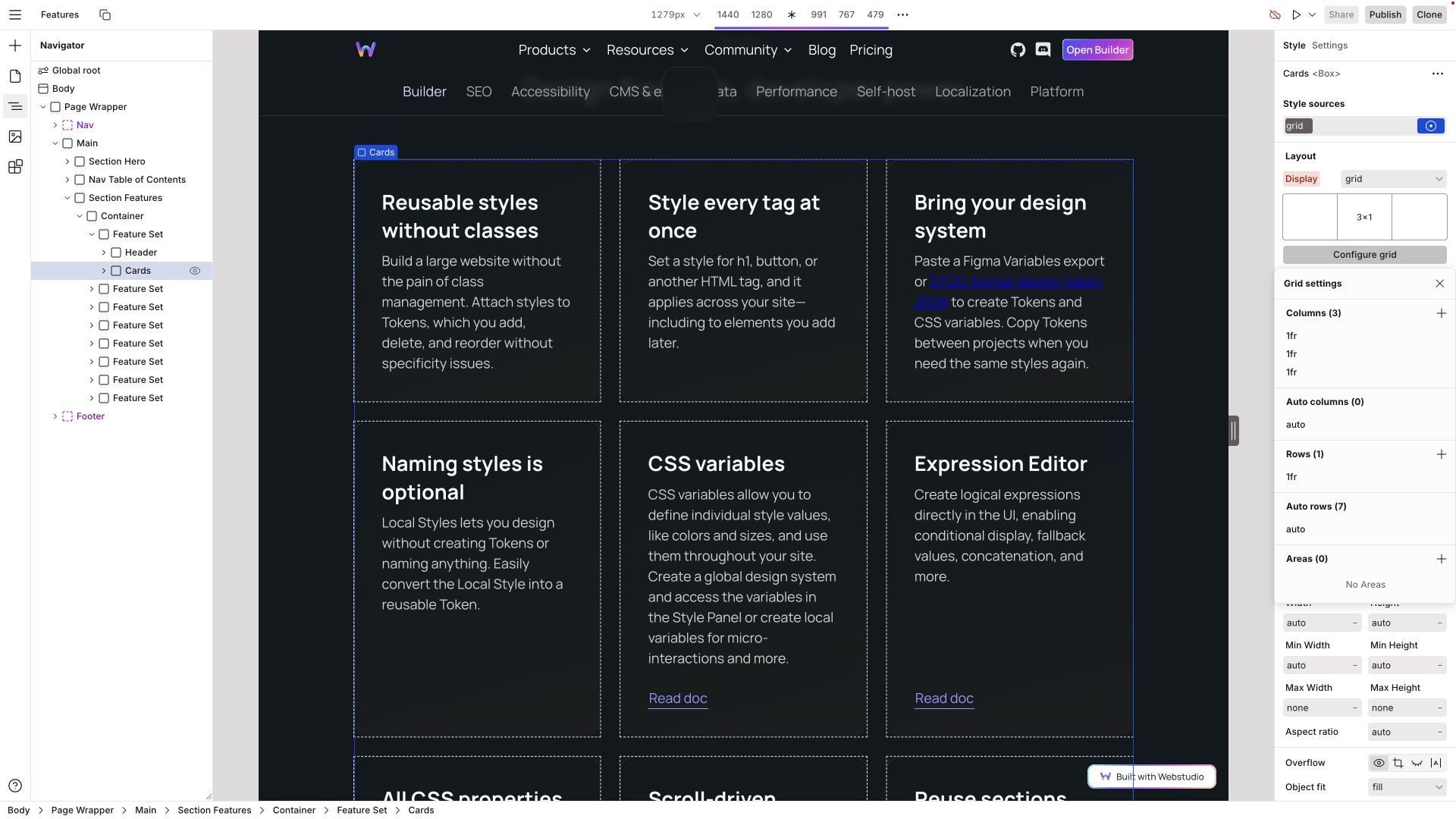
For example, give a photo an area beside the text on desktop. At the mobile breakpoint, move that area above the text. You haven’t moved the photo in the page structure or made a second copy for mobile. You’ve changed where the grid puts it.
Preview reduced motion and dark mode on the Canvas
Screen width isn’t the only reason a design should change. A visitor may have asked their operating system for less motion or a dark color scheme. Select the corresponding breakpoint in the breakpoint simulator to see how your site responds on the Canvas. You don’t have to change your own system settings to check someone else’s.
Build colors from CSS variables
The new color picker supports modern color spaces such as OKLCH and Display P3. You can also use CSS variables inside color functions, including color-mix() and relative colors. For a lighter button on hover, try color-mix(in oklch, var(--brand) 85%, white). Change the brand color later and the hover color follows it.
Light and dark modes for the Builder itself
If you work in the evening, the Builder’s new dark theme can be easier on the eyes. Choose Light or Dark, or pick System to follow your device’s setting. The Dashboard uses the same setting.
Super flexible new Form component
A contact form often has more than one job. You want the message and its attachment in your team’s inbox, a confirmation in the visitor’s inbox without sending their attachment back, and a new lead in your CRM.
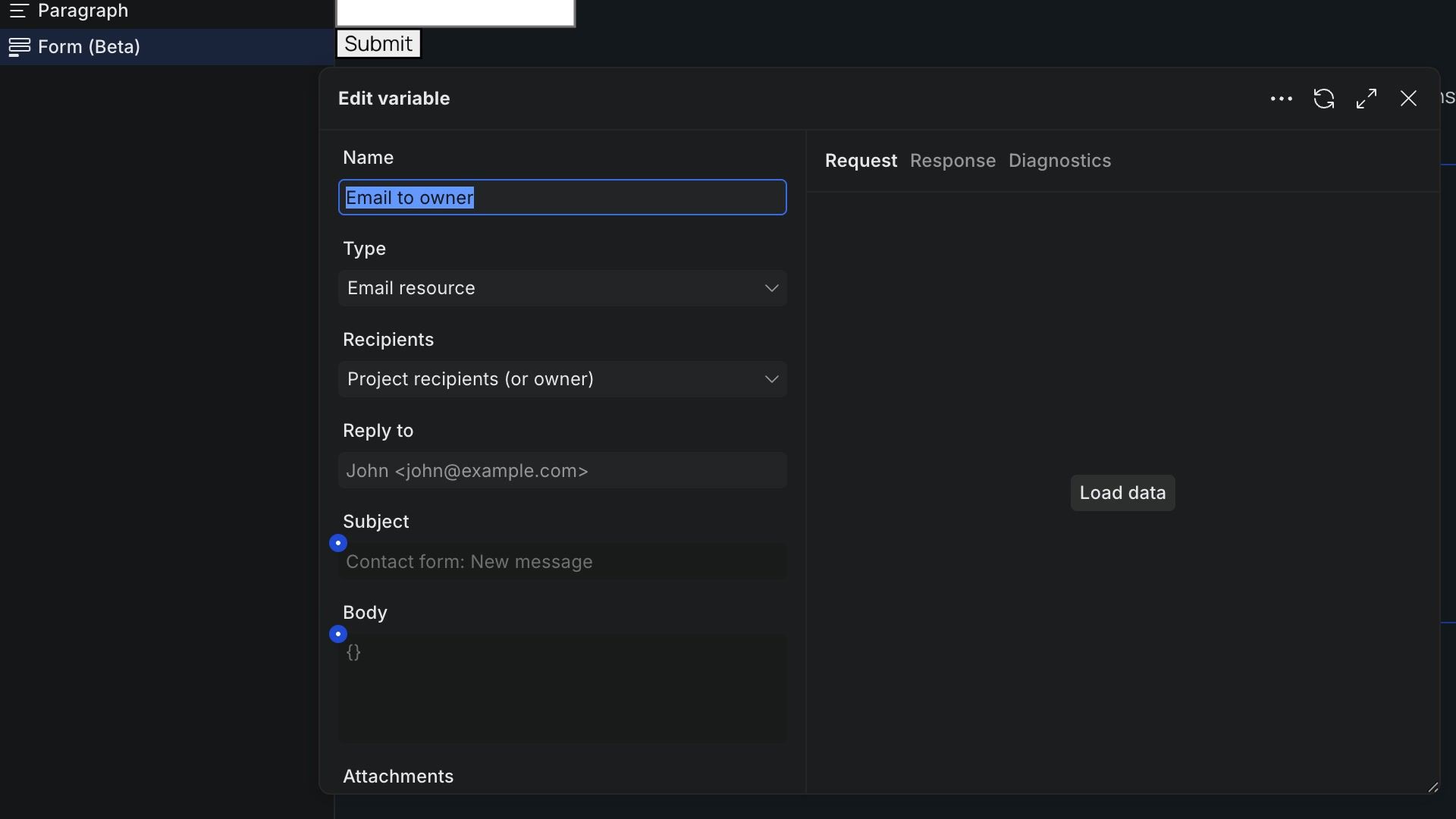
The new Form component can do all three. A submission can run up to 10 actions in total, across email, REST, and GraphQL. It can call any API endpoint Webstudio can reach that accepts a POST request. You write the emails, choose what to send to your CRM, and design what the visitor sees during the upload, on success, or if something goes wrong. You don’t need a separate service like n8n to pass the submission from one place to the next.
A Form can also let visitors search or filter a list on your site. Use Navigation mode and leave the actions empty. When someone submits a search, the Form puts their search term in the URL without reloading the page. Connect the list’s Resource to that value and the page shows only the matching entries. Visitors can bookmark the results or share the link.
Check a site before you publish
A page can look right on the Canvas even if it refers to a Resource that no longer exists or has HTML elements nested where they don’t belong. Open the publish dialog and choose Validate to catch problems like these on the pages you’re about to publish. You can fix what it finds and check again without changing the live site.
Logs for agents and humans
If a publish fails, choose See issues in the Builder. When a publish log is available, you’ll see the step that failed and its output first. If an agent started the publish, it can read that log itself. You don’t have to copy an error out of the Builder and paste it into a chat.
Password-protect part of a site
With Basic authentication, you can put one page on a custom domain behind a username and password, or protect a whole section such as /client-preview/*. Your client can look through the work there while the rest of the site stays public.
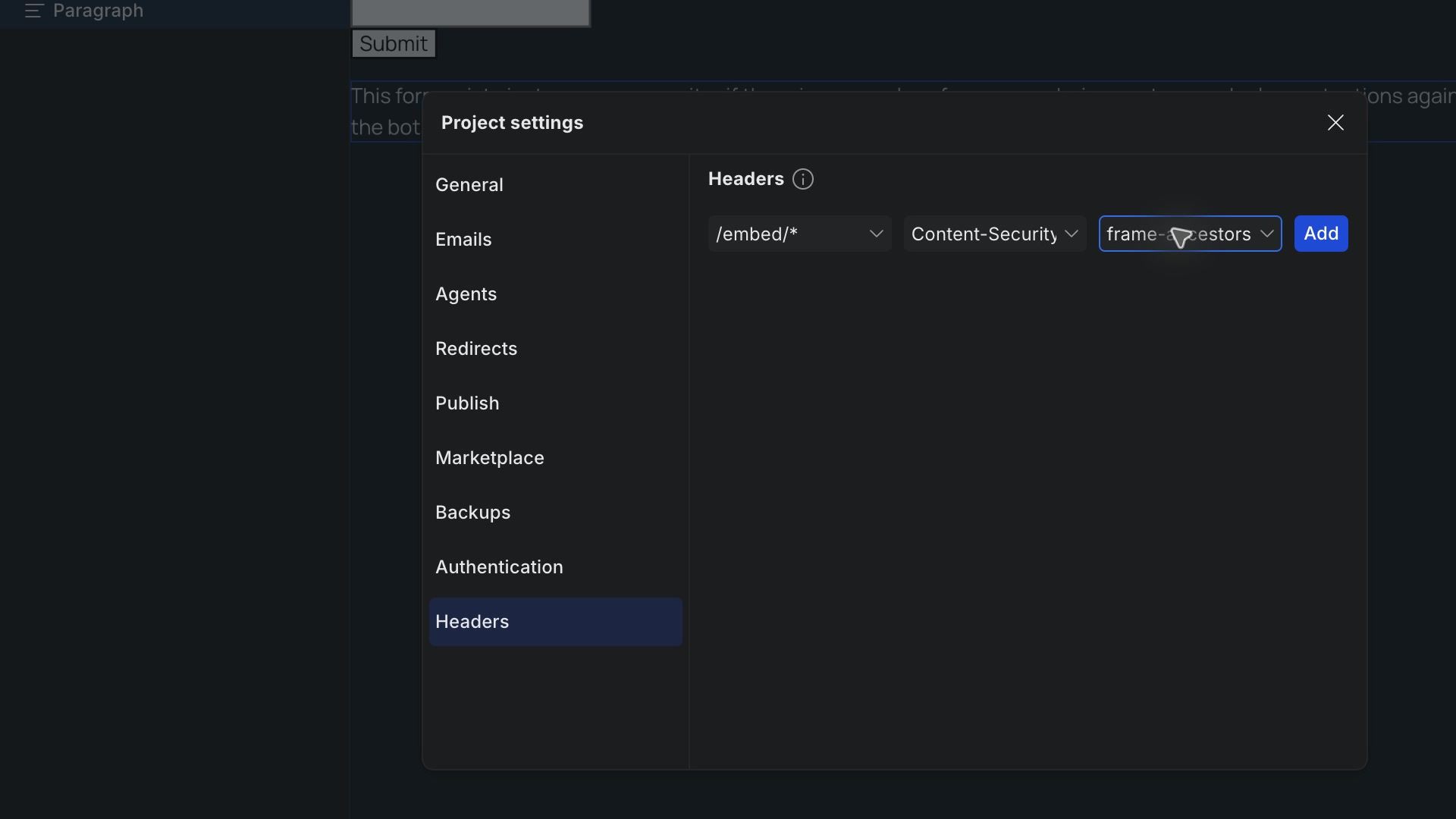
Embedding is blocked by default, but you can now allow it
You might want a partner to embed a page from your site without letting just anyone do the same. Webstudio Cloud blocks other sites from embedding your pages by default. That helps protect visitors against clickjacking, where someone disguises your page inside theirs to trick a visitor into clicking it.
You can now set response headers for a specific route. For the page you want to share, name the partner’s site in the frame-ancestors rule of the Content-Security-Policy header. The partner can embed that page. The rest of your site keeps its protection.
2026 isn’t over yet. We’ll update this post as more features ship. What’s missing for the sites you’re building? Tell us on Discord. We’d like to hear what you want on the roadmap.